


Tested on: Galaxy S23+ running One UI 8.5
Out of the box, a long press on your Galaxy's Side button opens Gemini, not the power menu, and a double press opens Camera. This guide shows how to customize Samsung Side button shortcuts on One UI 8.5, match them to your habits, and fix what breaks. Start with what each press does, because that decides which gesture to change first.
What the Samsung Side Button Does and When to Change It
The Side button handles four separate actions, and Samsung lets you reassign two of them. Samsung's Side button support guide lists the defaults like this:
- A single press wakes or locks the screen.
- A double press launches the app or feature you assign, with Camera as the default.
- A long press opens Gemini, or Google Assistant in regions without Gemini.
- Side plus Volume Down takes a screenshot with a quick press and opens the power-off menu with a long press.
Single press and the Volume Down combo stay fixed. Double press and long press are yours to remap.
Change the double press when you reach for something other than the camera more often. Which do you open more from a locked screen, the camera or your payment cards? Your honest answer is your double press shortcut.
Change the long press when you keep summoning an assistant by accident while trying to restart. That one habit causes most of the frustration with this button.
Why Gemini on Long Press Does Not Lock You Out of the Power Menu
A common claim says that leaving Gemini on long press means you need the screen to shut down your phone. Samsung's documentation contradicts it. The Side and Volume Down combo still opens the power-off menu on a long hold, whatever you assign to the Side button alone.
Requirements Before You Start
You need a Galaxy phone or tablet with a combined Side button and a few minutes. Check these before you change anything:
- Your device runs One UI with a Side button. Galaxy S10, S8, Note 9 and older models use a separate Bixby key with different settings.
- Your One UI version shows under Settings > About phone > Software information.
- Gemini needs an internet connection and a signed-in Google Account.
- Gemini needs you to be 13 or older on a personal account and 18 or older on a work account, according to Samsung.
- Galaxy Z Flip owners should test shortcuts with the phone open. Samsung's US Side button page notes that behavior changes when the phone is closed.
The menu path has stayed stable across recent releases. This table shows what we confirmed and where we have gaps.
| One UI version | Path to Side button settings | Long press options | Basis |
|---|---|---|---|
| One UI 8.5 | Settings > Advanced features > Side button | Digital assistant, Bixby, Power off menu | Tested on Galaxy S23+ |
| One UI 8 | Settings > Advanced features > Side button | Digital assistant, with Google chosen through the gear icon | Samsung Canada's One UI 8 guide |
| One UI 7 | Settings > Advanced features > Side button | Digital assistant, Bixby, Power off menu | Not tested by our team |
| One UI 6.1 | Not confirmed | Not confirmed | We have not tested this path on One UI 6.1 |
| One UI 9 | Not confirmed | Not confirmed | We have not tested this path on One UI 9 |
Samsung's guide says you can now assign apps to Long press as well as Double press. Samsung's US list shows only three Long press options. Open your own Long press screen and trust what it shows.
How to Customize the Samsung Side Button Step by Step
Both gestures live on the same settings screen. Set the double press first, then the long press, and test each one from a locked screen.
Set Your Double Press Shortcut
Step 1. Open Settings and tap Advanced features.
Typing "side button" into the Settings search bar takes you there faster.
Step 2. Tap Side button.
You land on the screen that holds both gestures plus a power-off help section at the bottom.
Step 3. Tap Double press and confirm its switch is on.
A switched-off Double press makes the gesture do nothing at all.
Step 4. Pick one option from the list.
Samsung lists Camera, Samsung Wallet, Flashlight, Magnifier, Voice Recorder, Samsung Notes, Samsung Capture, Modes and Routines, and Apps. Choose Apps to launch any installed app.
Step 5. Tap the gear icon beside your choice to set an in-app action.
A gear means the app supports a direct shortcut. Camera can open straight to selfie mode, and Voice Recorder can start recording immediately.
Step 6. Lock the phone and double press the Side button to test it.
Testing from the lock screen shows you exactly how the shortcut behaves in real use.
PRO TIP: The Modes and Routines option lets one double press run a whole routine. Build it first with our guide to creating Samsung routines, then assign it here.
Set Your Long Press Shortcut
Step 7. Go back to the Side button screen and tap Long press.
The current choice shows a filled radio button.
Step 8. Choose Digital assistant, Bixby, or Power off menu.
Pick Power off menu if you want the classic restart and shutdown screen on a hold.
Step 9. Tap the gear icon beside Digital assistant to pick the assistant app.
Select Google for Gemini, as Samsung's One UI 8 support page instructs. Compatible assistant apps you install appear in the same list.
Step 10. Read the How to power off your phone section before leaving.
Samsung lists three backup routes there: the Quick panel power icon, Side plus Volume Down, and asking Bixby to turn off the phone.
WARNING: With Digital assistant or Bixby on long press, holding the Side button alone never shows the power menu. Practice the Side and Volume Down hold once now, so you know it before your phone freezes.
Which Side Button Setup Fits Your Habits
Match the setup to what you do most with one hand. Do you restart your phone more often than you ask an assistant anything? If yes, the Power off menu belongs on long press.
| If you mostly | Double press | Long press |
|---|---|---|
| Shoot quick photos and selfies | Camera, with the gear set to selfie mode | Digital assistant |
| Pay at shops with your phone | Samsung Wallet | Digital assistant |
| Record meetings or lectures | Voice Recorder set to start recording | Digital assistant |
| Walk home in the dark | Flashlight | Power off menu |
| Prefer Samsung's own assistant | Any option | Bixby |
| Set up phones for older relatives | Camera | Power off menu |
Bixby gets a stronger case on One UI 8.5. The Samsung Newsroom announcement of the new Bixby describes it changing device settings from plain-language requests. That suits people who mostly want phone control rather than web answers.
Common Samsung Side Button Problems and How to Fix Them
Most Side button complaints trace back to a default nobody chose on purpose. Work through the problem that matches what you see.
Holding the Button Opens Gemini Instead of Restart
Problem: You hold the Side button to restart and a Gemini prompt appears.
Cause: Long press is set to Digital assistant, which is Samsung's default.
Fix:
- Open Settings > Advanced features > Side button > Long press.
- Select Power off menu.
- Hold the Side button to confirm the power options now appear.
Long Press Opens Bixby After You Chose Gemini
Problem: The long press launches Bixby, not Gemini.
Cause: Long press is set to Bixby, or the Digital assistant gear points to a different assistant app.
Fix:
- Open Side button > Long press and select Digital assistant.
- Tap the gear icon and select Google.
- Sign in to a Google Account in Settings if Gemini still refuses to open.
Double Press Stops at the Lock Screen
Problem: Your double press shortcut stalls at the lock screen or demands your PIN.
Cause: Samsung blocks some apps and features on the lock screen for security reasons, as Samsung Japan's Side button page states.
Fix:
- Verify with your fingerprint or face right after the double press.
- Switch the shortcut to Flashlight if you need it hands-free. Samsung says it works even with the screen off.
- Keep private apps like banking on the double press only if entering your PIN first is acceptable.
No Gear Icon Appears Next to Your App
Problem: You picked an app but cannot choose a specific action inside it.
Cause: The app does not offer in-app shortcut options to the Side button.
Fix:
- Pick a Samsung app that shows the gear, such as Camera, Voice Recorder, or Samsung Notes.
- Build a routine that opens the app and performs the action, then assign it through Modes and Routines.
Frequently Asked Questions About Samsung Side Button Settings
Q: How do I turn off the flashlight after a double press?
A: Double press the Side button again to switch the light off. For brightness, open the Quick panel, touch and hold the Flashlight icon, and drag the slider while the light is on. Samsung Canada's flashlight guide notes the slider stays grayed out until the flashlight is lit.
Q: Can I put the flashlight on long press instead?
A: The built-in Long press list does not include Flashlight. In a Samsung Community thread on quick flashlight access, members pointed to the RegiStar module in Samsung's Good Lock app as a workaround. Good Lock availability depends on your region.
Q: How do I force restart a frozen Galaxy when long press opens Gemini?
A: Press and hold Volume Down and the Side button together until the screen goes black. Keep holding until the Samsung logo appears, then let go. Samsung's restart guide recommends this when the touchscreen stops responding.
Q: My older Galaxy has a separate Bixby key. Does this guide apply?
A: No. The Galaxy S10, S8, and Note 9 use a dedicated Bixby key with its own menu under Settings > Advanced features > Bixby. Samsung says holding that key always launches Bixby Voice, so only the press actions can be remapped.
Q: Will One UI 9 change the Side button settings?
A: We have not tested this path on One UI 9. The One UI 9 stable update for the Galaxy S23 has reached Europe, so the path table gets a new row once we confirm it. Our One UI 9 rollout tracker shows when your model qualifies.
Q: Can I set long press to open a third-party assistant?
A: Yes, if the app registers as a digital assistant on Android. Install it, then return to Long press, tap the gear beside Digital assistant, and select it. Apps that are not assistants never appear in that list.
Your Next Move: Test Both Gestures From a Locked Screen
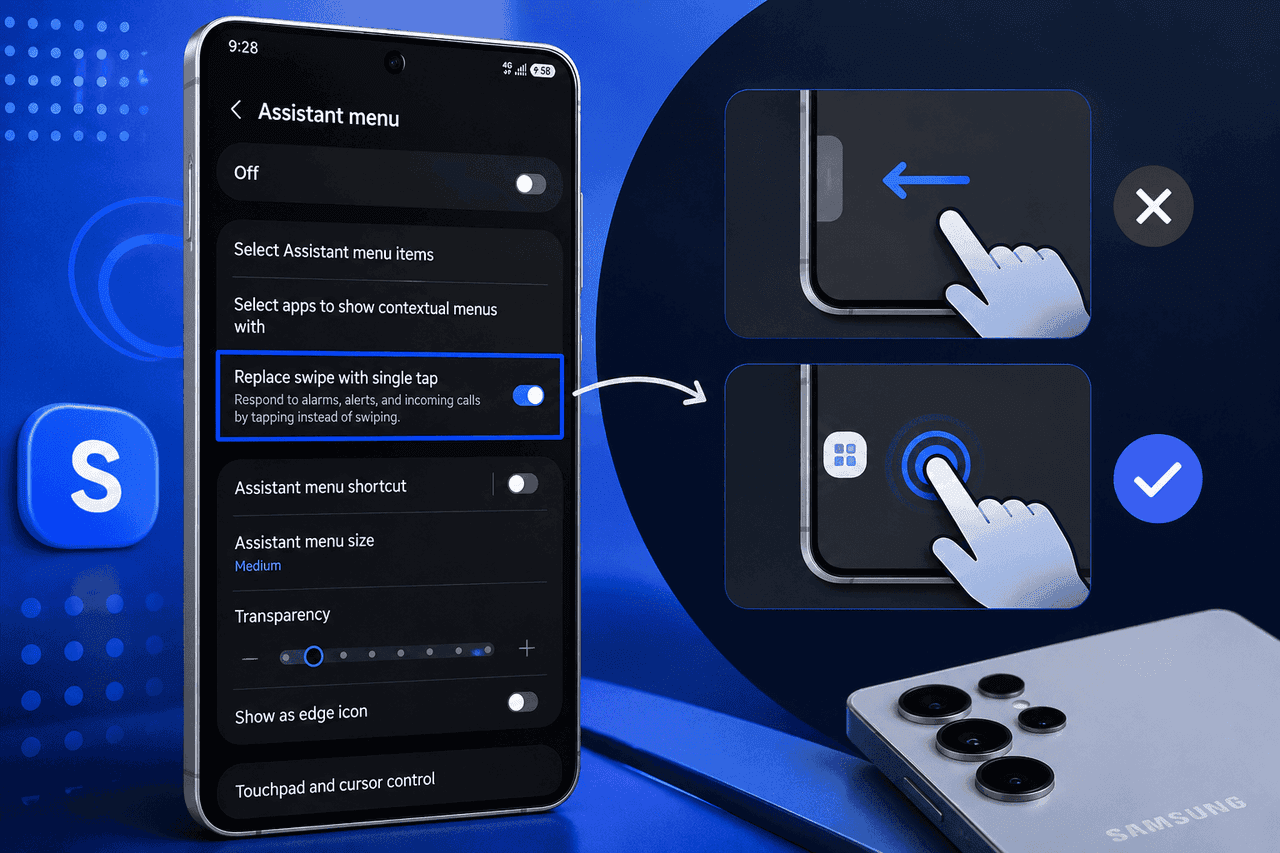
Lock your phone, double press, then long press, and confirm each gesture does what you set. If you like trimming taps, pair this with our guide on replacing swipe gestures with a single tap on Galaxy phones.
Did the steps to customize Samsung Side button shortcuts match your screen? Tell us your Galaxy model, your One UI version, and what you put on double press in the comments.





Responses (0 )