

Tested on: Galaxy S23+ running One UI 9.0
Here is how to connect to WiFi on a Samsung Galaxy: open Settings, tap Connections, then Wi-Fi, and pick your network. Quick Settings and a QR scan also work, and this guide adds four fixes for a failed connection. Each route suits a different moment, so start with what the Wi-Fi switch controls.
What Wi-Fi Does on a Galaxy and When to Change It
Wi-Fi puts your phone's traffic on a router instead of your mobile data plan. Samsung's connection options page says the phone starts scanning for nearby networks as soon as you switch Wi-Fi on.
You change your Wi-Fi setup in four situations. You bought a new phone, you replaced the router, someone changed the password, or a guest needs access. Each situation points to a different route below.
Requirements Before You Start
- You need the network name and the current password. Samsung's Ireland support page sends owners to their internet provider for password changes.
- The router must be powered on and within range of your phone.
- Samsung's Malaysia support page ties the QR code option to Android 9 Pie and later.
- Install pending updates first. Open Settings, tap Software update, then tap Download and install, as our One UI 9 rollout guide describes.
Not sure your model gets One UI 9? Check our One UI 9 eligible devices list before you plan around it.
Generic Android guides send you to Network & internet, then Internet. That is the path in Google's Android help page. A Galaxy keeps the same controls under Connections.
| Task | Galaxy path | Google's generic Android path |
|---|---|---|
| Turn Wi-Fi on and pick a network | Settings > Connections > Wi-Fi | Settings > Network & internet > Internet |
| Quick switch from any screen | Swipe down, tap the Wi-Fi icon, then tap the word Wi-Fi | Swipe down, tap Internet |
| Share a connected network | Wi-Fi screen > gear icon next to the network > QR code | Tap the network, then tap Share |
| Reset network settings | Settings > General management > Reset > Reset network settings | Not covered on that page |
We have not tested these paths on One UI 8.5 or earlier, so older builds might label a menu differently.
How to Connect to WiFi on a Galaxy Using Settings
The Settings route works on every Galaxy and lists every network in range, so use it for a first connection.
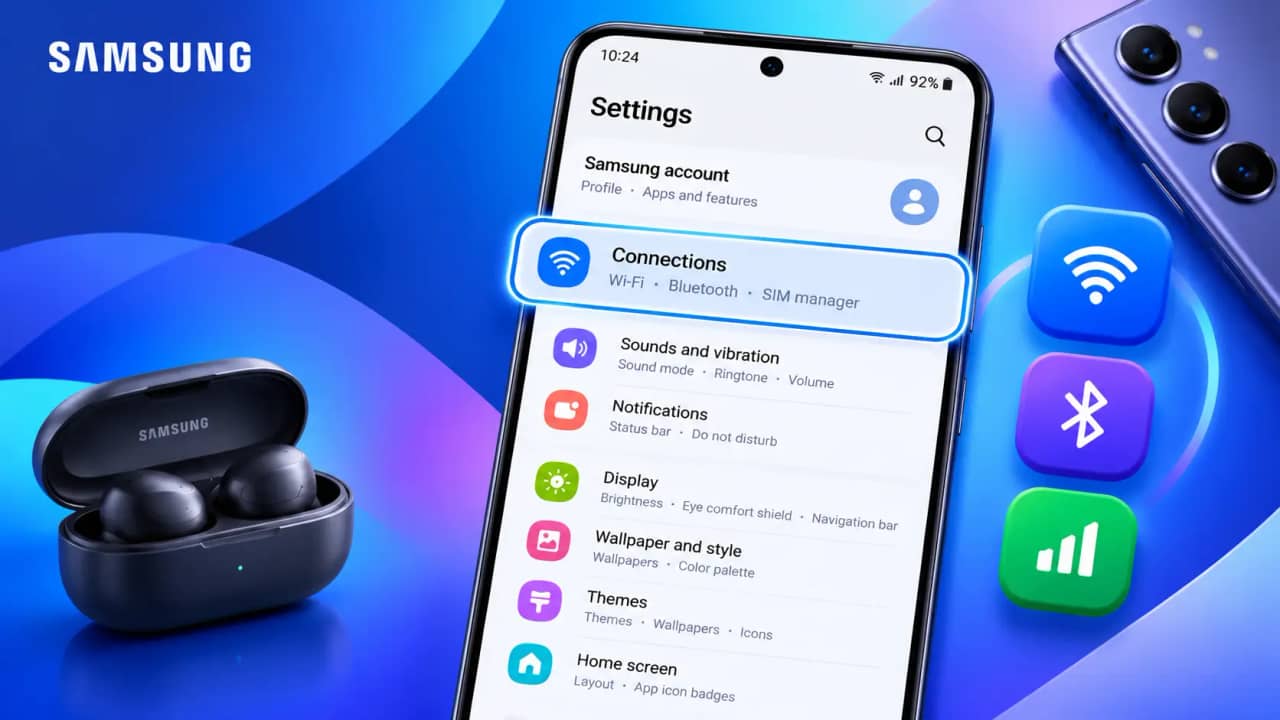
Step 1. Open Settings and tap Connections.
Samsung groups the Wi-Fi, Bluetooth, and NFC switches on this screen.
Step 2. Tap Wi-Fi, then switch the toggle on.
Once the switch is on, the phone scans for available networks by itself.
Step 3. Tap your network name in the list.
Pick the exact name your router broadcasts, since neighbors' networks appear in the same list.
Step 4. Type the password and tap Connect.
Passwords are case sensitive, so check capital letters before you retry.
Step 5. Look for the Wi-Fi icon in the status bar.
The icon appears once the connection is active. Open a web page to confirm you are online.
Quick Settings and QR Code Shortcuts
Both shortcuts skip menus once you know the Settings route. Samsung's Australia support page lists each one.
- Quick Settings works like this: swipe down, tap the Wi-Fi icon, tap the word Wi-Fi, choose your network, enter the password, and tap Connect.
- For a QR scan, open Wi-Fi under Connections, tap the QR code icon, point the camera at the code, and tap the Connect pop-up.
Share Your Wi-Fi With Another Phone
Your Galaxy can show a QR code for the network it is already connected to, so guests never type the password. Samsung's Canada support page shows the screen.
Do guests ask for your password every week? This route saves you from reading it aloud each time.
Step 6. Open Settings, tap Connections, then tap Wi-Fi.
Your connected network sits at the top of the list.
Step 7. Tap the gear icon next to your connected network.
The same screen holds the QR code button and the Forget option.
Step 8. Tap QR code at the bottom of the screen.
The code fills the screen.
Step 9. Have the guest place the code inside their camera frame.
Their phone reads the code and handles the rest of the connection.
Which Route Fits Your Situation
| Your situation | Best route | Why it fits |
|---|---|---|
| First connection at home with the password in hand | Settings | You see the full network list and every option on one screen. |
| Rejoining a known network quickly | Quick Settings | You skip the Settings menus. |
| Long password or a QR code printed on the router | QR scan | You type nothing. |
| A guest needs your network | Share QR code | The guest scans instead of asking for the password. |
Common Galaxy Wi-Fi Problems and How to Fix Them
Samsung says Wi-Fi failures usually come from router problems, incorrect settings, or app conflicts, according to its troubleshooting page. Work through these in order.
Problem: Your network is missing from the list.
Cause: The signal is too weak or the router has stopped broadcasting. Samsung's Ireland page points to the signal or the router when a network does not appear.
Fix:
- Move closer to the router. A Samsung Community reply lists concrete walls, fridges, and microwaves as signal blockers.
- Restart the router and wait for it to come back online.
- Restart your Galaxy and check the list again.
- Check whether another device sees the network. If not, the router is at fault.
Problem: The password is rejected, or a saved network will not connect.
Cause: Your phone still holds the password it saved earlier, and the router no longer accepts it.
Fix:
- Open Settings, tap Connections, then tap Wi-Fi.
- Tap the gear icon next to the network, then tap Forget.
- Tap the network again and type the current password.
- Ask your internet provider for the correct password if it still fails.
Is your phone connected but still offline? The next problem covers that.
Problem: The phone shows Wi-Fi but pages will not load, or mobile data climbs.
Cause: The router lost its internet link, or Intelligent Wi-Fi moved traffic to mobile data because the signal looked unstable. Samsung's Intelligent Wi-Fi description says the phone switches back when the Wi-Fi signal is strong.
Fix:
- Try the same network on another device. If it also fails, call your internet provider.
- On your Galaxy, open the Wi-Fi screen and tap More options, the three vertical dots.
- Tap Intelligent Wi-Fi.
- Turn off Switch to mobile data if you want the phone to stay on Wi-Fi.
Problem: Nothing connects after every fix above.
Cause: A bad saved network setting or an app conflict, both of which Samsung lists among the usual causes.
Fix:
- Open Settings, tap General management, then tap Reset.
- Tap Reset network settings, then tap Reset settings, then tap Reset.
- Switch Wi-Fi on and register your network again.
WARNING: This reset clears more than Wi-Fi. Samsung says it resets Wi-Fi information, mobile data, and Bluetooth connections, so pair your Bluetooth devices again afterward. It is not a factory reset, and your files stay.
A Samsung Community thread about an S23 Ultra and an S24 that would not join Wi-Fi shows the same order. The Samsung reply put the network reset first and warned that it removes saved Bluetooth devices and saved Wi-Fi networks.
Frequently Asked Questions About Connecting a Galaxy to Wi-Fi
Q: Will my Galaxy reconnect to a saved network on its own?
A: Yes. Google's Android help page says a device with Wi-Fi on connects automatically to nearby networks it has joined before. That is why a wrong saved password keeps failing until you forget the network.
Q: What is Wi-Fi Direct, and is it the same as joining a router's network?
A: No. Samsung's UK support page says Wi-Fi Direct links two devices without a router and needs the feature enabled on both. You tap Accept on the second device to finish.
Q: What does Switch to better Wi-Fi networks do?
A: It sits in the same Intelligent Wi-Fi menu and moves your phone to faster or more stable networks automatically. Hotspot 2.0, listed in the advanced Wi-Fi settings, connects automatically to networks that support that standard.
Q: Can Samsung Members test my connection?
A: Samsung's Ireland page says the Samsung Members app can diagnose Wi-Fi connectivity issues. Run that diagnostic before you reset anything, because the reset deletes your saved networks.
Q: Will my saved Wi-Fi networks move over when I switch from an iPhone?
A: Our Samsung Smart Switch iPhone transfer guide reports that Samsung lists saved Wi-Fi networks among the data its upgraded wireless transfer supports. That flow needs Android 17 or later and iOS 26.6 or later.
Your Next Step After Joining the Network
You now know how to connect to WiFi three ways. Save the QR code screen for guests and keep the reset as your last resort. If you want Wi-Fi to switch on at a set place, our Samsung Routines guide walks through building that automation.
Which Galaxy model and One UI version are you on, and which route worked for you? Leave both in the comments.





Responses (0 )